
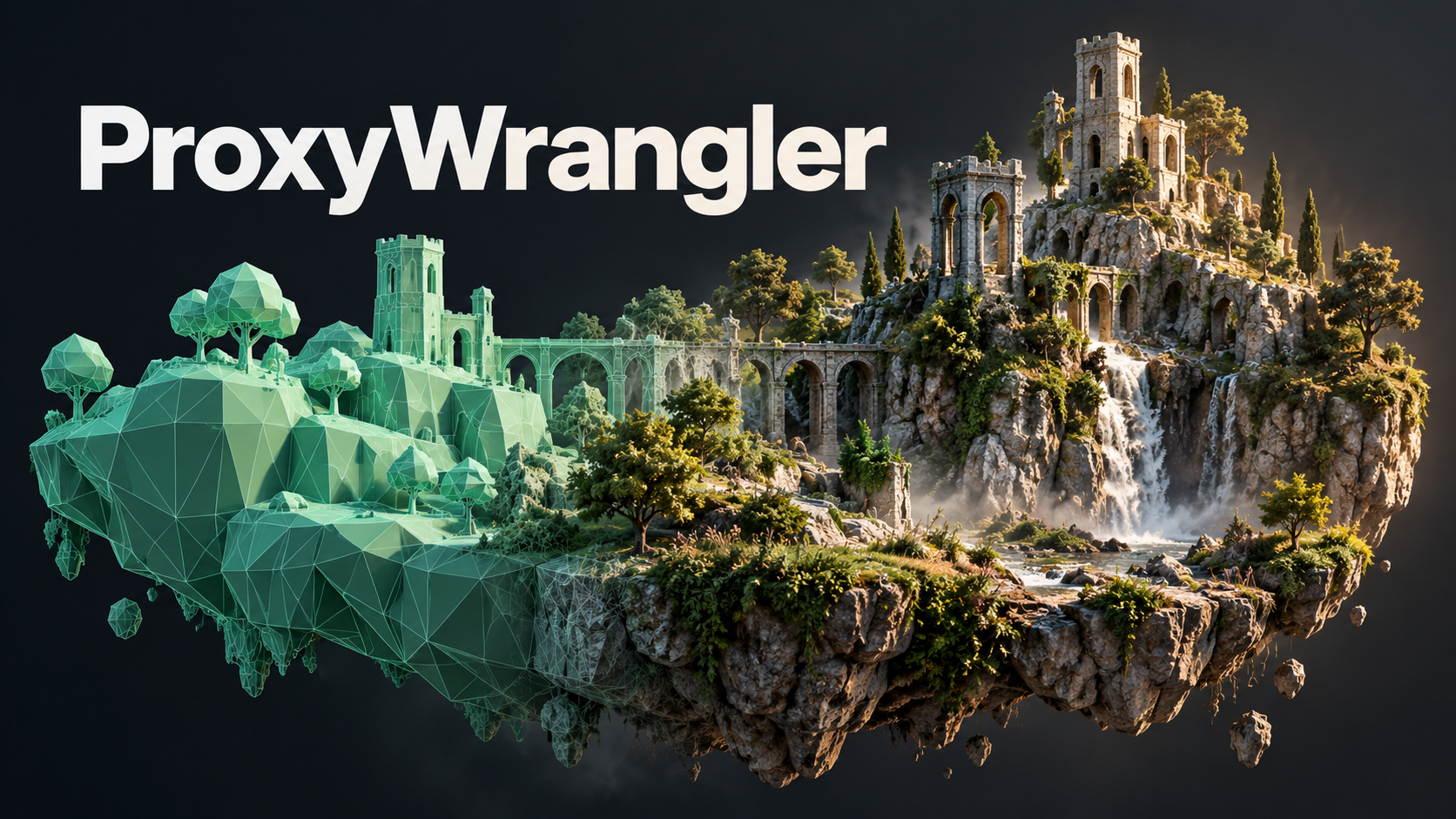
Dense environment assets can make scene dressing feel heavier than it needs to be. While deciding where a rock, prop, or building belongs, the useful information is often its silhouette and placement. The full production mesh matters when it is time to render.
Proxy Wrangler separates those two stages. Version 1.1.1 generates lightweight stand-ins for Blender assets, lets you arrange them with ordinary object transforms, and uses production geometry at those placements during rendering.
A layout built around silhouettes
The ProxyWrangler Engine panel lives in the ProxyWrangler tab of the 3D Viewport sidebar. In Object Mode, select mesh objects or collection-instance objects, choose a quality setting, and use Generate → Selected. Generate All processes eligible visible assets in the active view layer, skipping assets that already have proxies.
The resulting proxies use baked geometry without materials, with solid display and a wire overlay. Their production counterparts are hidden from viewport editing. Move, rotate, and scale the proxies with Blender’s normal controls to compose the scene.
This is a placement workflow. Editing proxy vertices or adding modifiers to a proxy does not transfer those geometry changes to the production asset.
Keep enough shape to make decisions
Custom Ratio ranges from 0.1% to 100%, with a 3% default. Fast Layout targets 1%, Balanced targets 3%, and Detailed Silhouette targets 15%. Adaptive starts from the selected ratio and raises it for smaller assets.
Every mode except Custom Ratio applies a minimum triangle floor, which defaults to 64. That protection helps small assets retain a useful shape. Final triangle counts depend on topology, and fewer polygons alone do not guarantee a particular viewport speed.
If a silhouette becomes too rough, change the quality setting and use Regenerate → Selected. Regeneration rebuilds geometry from the production asset while preserving the proxy object, name, placement, collection membership, and production relationship. A failed rebuild keeps the existing proxy geometry.
Reuse geometry, keep separate placements
Share Matching Geometry is enabled by default. Assets with matching evaluated geometry and quality settings can share one local proxy mesh, while each proxy keeps its own transform and production reference. Differently deformed assets receive different proxy meshes.
Shared mesh data behaves like Blender linked duplicates: a vertex edit affects every proxy using that mesh. Object transforms remain the right way to dress the layout. To place another copy of an asset, create a separate production placement first and generate its proxy, rather than duplicating an existing proxy and leaving two proxies mapped to one target.
Linked meshes, collection hierarchies, nested mesh instances, and library overrides are supported. Proxy geometry stays local; editable production placements may use local overrides. Keep the linked libraries available when reopening or rendering the scene.
Check before the renderer starts
Render Preflight checks production references, duplicate mappings, linked-library availability, editability, collection exclusions, the camera, and current-frame transform compatibility. Checked render actions stop before starting the renderer when a problem is found.
Use the panel’s Preflight & Render or Preflight & Animation actions, the ProxyWrangler Render menu entries, or its F12 and Ctrl+F12 shortcuts. During rendering, proxies are hidden from the render and production assets temporarily receive the proxy placements. Completion or cancellation restores the previous production transforms and render visibility, leaving the proxy layout available for further work.
Preflight checks the current frame, not every frame of an animation. Native render actions, scripts calling the renderer directly, and render-farm commands can bypass blocking validation. If a shortcut conflicts with another keymap, use the panel button.
Finish with production geometry
Rendering temporarily swaps geometry. Restore Production commits the proxy placements, reveals successfully restored production objects, and removes their proxies and unused proxy mesh data. If restoration fails, the proxy remains and the tool reports the problem.
Restore production assets before disabling the extension when you want to render independently of its handlers. Use the view layer that was active when the proxies were generated.
Release and compatibility
Version 1.1.1 declares Blender 4.2.0 and later. The release documentation reports runtime testing in Blender 5.1.2; Blender 4.2 runtime compatibility remains unverified. No separate Python packages are required. File access is requested to check linked-library availability during preflight, and the extension code uses the GPL-3.0-or-later license.
Read the Proxy Wrangler documentation for installation and workflow details, or visit the project page for the overview.